Post-installation Configuration
Download and Install
Configuration
Foundation is conceived with the idea of convention over configuration. Only a very minimal setup is required before getting started.
Foundation encrypted config file.
Right after installation, Foundation creates an encrypted config file under /etc/foundation/${PROFILE}.settings, where ${PROFILE} is the profile name you provide in the configuration.
This file specifies where Foundation keeps its data as well as some security.
If removed, you will need to run the foundation config again.
Review this config to make sure it meets all requirements.
See requirements
Tip
Maybe is necessary to stop and disable your firewall to run foundation at on-premise installation, to do that run the command below.
If you prefer, create a rule at your firewall instead of disable it: Check k3s docs.After stop firewall or create rule exception, restart k3s service it was installed:
Foundation has a command that must run right after it's installed. This command is responsible for setting up OS-specific things like adding Foundation as a service, you don't need to reboot the server, but if you do a server reboot, the service is re-established.
Video
Setup
Sudo access needed.
To proceed with foundation configuration, make sure you have sudo/root access by running:
To start the configuration type:
Tip
It may seem confusing, but don't worry; the default configuration may be enough to get the Foundation read to go. So if you don't want to customize anything, you can keep pressing Enter until the last question.
Foundation update.
You must rerun the setup command to update Foundation to a new version.
Let's see all options...
Foundation Profiles
INFO[0000] Reading profiles from /etc/foundation/
default

QUESTION: Select your profile file (current: default):
The first step is to select or create a foundation profile. The Foundation profile is an encrypted file where all configs are stored. You can have multiple profiles, but on the current machine, only the default profile can be used to start a foundation. Others profiles can be helpful to connect and manage remote foundation installations. So in the typical scenario, when configuring a local setup in the current server, you need to hit the Enter key to choose the default profile.
Foundation volume location
The Foundation volume location is the file system path where the Foundation will store all k3s images, applications and data. Foundation will create four folders, kubelet, etc-rancher, rancher and system. The rancher and etc-rancher folder is where k3s points instead the default /var/lib/rancher and /etc/rancher, So you don't need to backup it to the <foundation>/rancher or <foundation>/etc-rancher, but if they are removed, you will need to download or load all the k3s/application images manually.
The system folder is where Foundation stores all application data.
Volume Backup.
All the Foundation's data and its apps are stored at the location you provided on the "Foundation volume location" configuration. You must back up the foundation/system folder to avoid data loss.
Foundation Orchestrator
Storage Configuration
All data in Foundation are stored in an S3-compatible service. This module is called foundation-storage. By default, the Foundation has a built-in storage module. But if your infra has an AWS S3 or a private S3-like MinIO server, you can customize it to use.
If you want to use the default built-in S3-compatible storage server:
Or, if you want to put your S3 server configuration:
QUESTION: Change Storage Configuration? (y/n): y
(Storage) Type (Local/Remote) [Local]: Remote
(Storage) URL [foundation-storage:9000]:
(Storage) Access Key [krBliBVTeLkXJ9z2FA1pEjdUJ1EpW82T]:
(Storage) Secret Key [ADM4Oa13UUrn5QFHGU6f4I4w6a3zjVDW]:
(Storage) Bucket [Foundation]:
Foundation has support for the container orchestrator kubernetes, and is already set as the default orchestrator.
Foundation Provider
INFO[0002] Supported platform provider:
oke - Oracle Kubernetes Engine
k3s - Lightweight Kubernetes

QUESTION: Kubernetes platform provider[k3s]:
An on-premise setup requires a k3s provider.
Foundation Namespace
Kubernetes Namespaces.
Avoid using Kubernetes Namespaces like:
NAME:
-
default
-
kube-system
-
kube-public
-
kube-node-lease
INFO[0025] k3s - Lightweight Kubernetes
INFO[0101] [INFO]  Using v1.25.6+k3s1 as release
...
INFO[0101] Starting basic requirements check...
WARN[0101] Sorry, Foundation is not ready to do remote check yet.
INFO[0074] Listing current Kubernetes Namespaces
NAME              STATUS   AGE
default           Active   42d
kube-system       Active   42d
kube-public       Active   42d
kube-node-lease   Active   42d

QUESTION: Foundation Namespace [foundation]:
The Namespace is a way to separate environments, so you can set up and use different configurations and applications for quality assurance and production.
Create a new namespace, for example, foundation, and press Enter.
QUESTION: Foundation Namespace [foundation]: foundation
INFO[0082] The namespaces [foundation] do not exist.

QUESTION: Should I create the namespace [foundation] ? (y/N)
Press y and Enter.
Foundation Registry
The Foundation Registry is a server that stores and release images modules for Foundation.
Registry test fails.
Foundation pulls all docker images from https://foundationregistry.synchro.com.br:443
It's strongly recommended that you do release access to the address: https://foundationregistry.synchro.com.br:443
Image Pull Policy
INFO[0003] Supported image pull policy:
Always - Always pull the image from the foundation registry (for online installation)
IfNotPresent - Pulls the image if not already present locally (for offline installation)

QUESTION: Image Pull Policy [IfNotPresent]:
An on-premise setup without internet access, we recommend the value IfNotPresent.
Gateway(Reverse Proxy)
QUESTION: Change Gateway(Reverse Proxy) Configuration? (Current: 80 , y/N): y

QUESTION: Define new proxy port [80]:
Here you can set the SSL configurations to enable Secure HTTP. The valid TLS versions are VersionSSL30, VersionTLS10, VersionTLS11, VersionTLS12, and VersionTLS13.
HTTPS (SSL/TLS)
To improve security, you can add an SSL/TLS certificate for your Foundation server to enable HTTPS.
For these steps, you need a certificate and key file at hand. If you don't have one, please see Generating TLS Self Signed Certificate and Key to generate a self-signed certificate and key for test purposes only (non-production) assuming it will not be a secure certificate created by a certifying unit. Since this kind of certificate is not recognized as valid for most browsers, your users will be presented with an error like this:
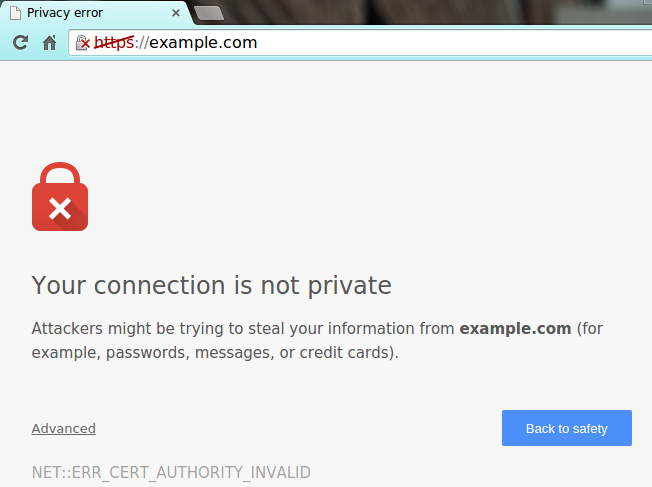
In this case, your users will have to add an exception to the browser security configuration (available in Advanced options).
SSL certificates are responsible for the encryption between a browser and a web server. The certificate is a way to assure that the site is who it claims to be. The entity responsible for generating and signing a certificate is known as Certificate Authorities (CA).
The validation process of a certificate depends on which type of certificate a given domain has or wants to acquire. There are three types of certificate levels:
- DV: Domain Validation (an elementary certificate that validates only the server domain)
- OV: Organization Validation (validates the domain and displays some company business details)
- EV: Extended Validation (perform a full business authentication and activates green address bar)
No matter what kind of certificate you are using, self-signed or created by certifying unit, you will must need the certificate and the key in the formats below:
- A Certificate public key (.crt file) used to encrypt data on the browser side with RSA PKCS1 cryptography.
- A private key (.key file) is used to decrypt the data on the server side.
These two files will be used on the Foundation HTTPS configuration.
Certificate and Key file location
We recommend to store your .crt and .key file at you foundation volume path, the default is /foundation. In the case of creating a new folder structure inside foundation volume path, the recommendation is that this new structure belongs to root user and group.
Enable TLS Option
Enter the TLS/SSL version
The default version is VersionTLS12.
Foundation supports the following versions:
- VersionSSL30 (SSL 3.0)
- VersionTLS10 (TLS 1.0)
- VersionTLS11 (TLS 1.1)
- VersionTLS12 (TLS 1.2)
Certificate Chiper Suite.
A cipher suite is a set of algorithms that usually contains: a key exchange algorithm, a bulk encryption algorithm, and a Message Authentication Code (MAC) algorithm.
Foundation supports the following algorithms:
- TLS_RSA_WITH_RC4_128_SHA
- TLS_RSA_WITH_3DES_EDE_CBC_SHA
- TLS_RSA_WITH_AES_128_CBC_SHA
- TLS_RSA_WITH_AES_256_CBC_SHA
- TLS_RSA_WITH_AES_128_CBC_SHA256
- TLS_RSA_WITH_AES_128_GCM_SHA256
- TLS_RSA_WITH_AES_256_GCM_SHA384
- TLS_ECDHE_ECDSA_WITH_RC4_128_SHA
- TLS_ECDHE_ECDSA_WITH_AES_128_CBC_SHA
- TLS_ECDHE_ECDSA_WITH_AES_256_CBC_SHA
- TLS_ECDHE_RSA_WITH_RC4_128_SHA
- TLS_ECDHE_RSA_WITH_3DES_EDE_CBC_SHA
- TLS_ECDHE_RSA_WITH_AES_128_CBC_SHA
- TLS_ECDHE_RSA_WITH_AES_256_CBC_SHA
- TLS_ECDHE_ECDSA_WITH_AES_128_CBC_SHA256
- TLS_ECDHE_RSA_WITH_AES_128_CBC_SHA256
- TLS_ECDHE_RSA_WITH_AES_128_GCM_SHA256
- TLS_ECDHE_ECDSA_WITH_AES_128_GCM_SHA256
- TLS_ECDHE_RSA_WITH_AES_256_GCM_SHA384
- TLS_ECDHE_ECDSA_WITH_AES_256_GCM_SHA384
- TLS_ECDHE_RSA_WITH_CHACHA20_POLY1305
- TLS_ECDHE_ECDSA_WITH_CHACHA20_POLY1305
Certificate file
Insert the Certificate file absolute path
Certificate Key file
Insert the Certificate Key file absolute path
Domain name
If you have different tenants: In many multitenant, a domain name is used to identify a tenant.
Example for Domain name:
URL: synchro.com.br
Synchro4me DNS Requirements
Some Synchro4me applications requires an DNS configured to your server to identify your tenant. Like foundation-prd.synchro.com.br in this case the tenant is FOUNDATIONPRD. Please consult the Synchro4Me manual to see DNS requirements.
Keycloak server information
Open Source Identity and Access Management For Modern Applications and Services, check Keycloak.
Connection Type
Connection Type: Local
The first time and the Connection Type is Local; the properties will be filled out automatically; press Enter until the Postgres step:
| Property | Value |
|---|---|
| Realm | synchro |
| Client ID | foundation-authentication |
| Client Secret | secret |
URL server
Available network interfaces on this machine:
Interface: enp3s0       Status: up
        Address: 172.27.10.125  SubMask: 172.27.0.0/16
        Address: fe80::499b:451a:ba2f:ee81      SubMask: fe80::/64
Interface: wlp5s0       Status: up
        Address: 192.168.0.160  SubMask: 192.168.0.0/24
        Address: fe80::9a8f:4fbf:7744:6ba6      SubMask: fe80::/64

QUESTION: (Keycloak) URL [http://192.168.0.160/keycloak]:
- Type: Local
The application automatically populates the URL server field with interface IP.
Pattern: http://subdomain.domain/keycloak
Proxy TLS Enabled
If the Proxy TLS/HTTPS configuration is enabled, change the Keycloak Url Server to HTTPS instead HTTP.
Pattern: https://subdomain.domain/keycloak
- Type: Remote
Get the Frontend URL from Realm; see Keycloak Realm
Realm
Get Realm name from Realm; see Keycloak Realm
Client ID
Get Client ID from Client authentication; see Keycloak Clients authentication
Client Secret
Get Secret credentials from client authentication; see Keycloak Clients authentication
Postgres configuration
Foundation has a Postgres module to simplify multi-tenancy management.
The Authlayer module depends on it. To install and start the foundation-postgres module before foundation-authlayer.
Server
- Type: Local
The application automatically populates the fields.
- Type: Remote
You'll need to fill out all the text fields.
Hostname
Port
Database
User
Password
Load base images
INFO[0006] Saving settings to /etc/foundation/default.settings
INFO[0006] Applying settings for profile default
INFO[0060] Creating cronjobs.
INFO[0512] kubectl client set to development
INFO[0014] Done
The last step is to autoload some foundation core images. Then, you can download it from the internet. We will read all files in /etc/foundation, looking for docker images to load. Those resources are installed via the rpm file. If you installed Foundation another way, you could not have the files in the /etc/foundation directory.
Foundation start
After configuring the Foundation by following the instructions above, let's start Foundation in the next section.