Troubleshooting
Fail to migrate path
ERRO[0000] ERROR: Fail to migrate to new application deployed path: GET1 http://<ip>:80/supervisor/api/apps/deployed Code: 500     {"success":false,"result":"Could not migrate to new application deployed path","details":{"Error":"The specified bucket does not exist"},"content":null,"version":""}
GET1 http://<ip>:80/supervisor/api/apps/deployed     Code: 500     {"success":false,"result":"Could not migrate to new application deployed path","details":{"Error":"The specified bucket does not exist"},"content":null,"version":""}
Procedure:
Warning
Replace ${foundation_path} to Volume location path, check:
Install k3s Offline
If the servers there is no Internet connection.
Procedure:
-
Download files:
-
Unzip files:
-
enter a directory:
-
Open
readme.txtfile and follow the steps:
Error to load image
ERRO[0300] Fail load base image: supervisor.tar.gz
ERRO[0300] Fail load base image: proxy.tar.gz
ERRO[0300] Fail load base image: storage.tar.gz
...
Check your filesystem type with df -Th.
If you are using xfs use xfs_info to see if you have dtype enable ftype=1.
Fail to get kubernetes namespaces
QUESTION: Kubernetes platform provider[k3s]:
INFO[0002] k3s - Lightweight Kubernetes
INFO[0304]
ERRO[0300] [exit status 127]
...
ERRO[0300] [fail to get kubernetes namespaces exit status 127]
...

Check if k3s has been instaled:
Check access requirementes, here.
Foundation modules don't start
-
Check pods status:
-
Describe pod:
kubectl describe pod foundation-supervisor-56as8957f8-54wsc
...
... Message
    -------
    0/1 nodes are available: 1 node(s) had untoleraited taint ...
-
Check if
/varhave size enough(>4GB):
Procedure:
-
kill all process:
-
Stop k3s:
-
Check the "Volume Location", by default is
/foundation. If the value is correct: -
Refesh systemctl service files:
-
Start k3s:
-
Get your namespace:
-
Check config context:
If the namespace is empty, execute:
Check if it's ok:
-
Delete namespace:
-
Foundation start:
Waiting until foundation core be ready(9)...
-
Open new terminal
-
Check pods:
-
Check if firewalld is inactive:
If is Active, disable:
If you prefer, create a rule at your firewall instead of disable it: Check k3s docs.After stop firewall or create rule exception, restart k3s service it was installed:
4. Describe proxy pod: Liveness and readiness probe failed:
-
Disable iptables:
Cannot allocate memory
Warning
This commands was running on linux kernel: 3.10.0-1160...
-
Check pods status:
-
Describe pod:
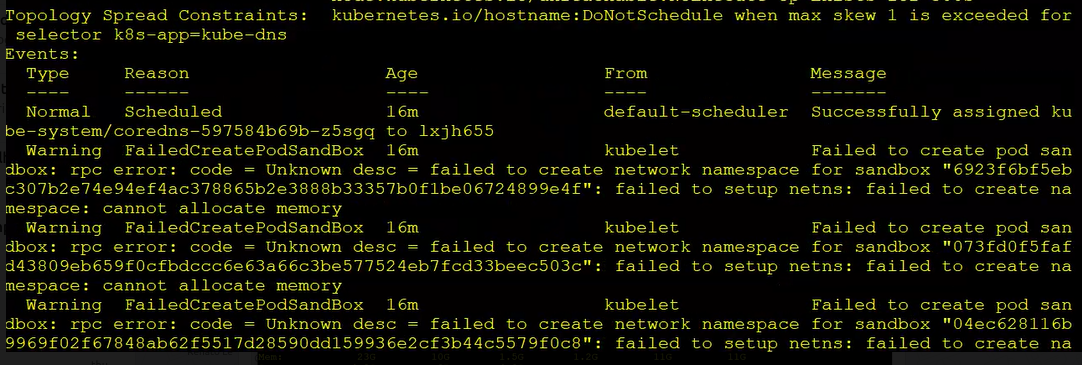
-
Check requirements.
-
Stop k3s:
-
Check free memory:
-
Release Linux Memory Cache:
-
To free pagecache:
-
To free dentries and inodes: ```bash echo 2 > /proc/sys/vm/drop_caches
-
-
Check free memory again:
-
Check cgtop:
IMPORTANT: If there is locked memory from cgroups, you must reboot the server.
Cannot restart a linux server?
8.1. List slices with memory:
8.2. List slices only:
8.3. To remove slices:
Kubectl config set-context
Check context:
If the namespace is empty, execute:
-
Get your namespace:
-
Input your namespace in config context:
-
Check if it's ok:
Logs is Forbidden

Enable permission to foundation-logs:
-
Check serviceAccount:
-
Alter serviceAccount to foundation-engine:
-
Check your kubectl namespace:
-
Check current permission from foundation-engine userAccount:
${namespace} field
Replace the field ${namespace} with your kubectl namespace
-
Update required roles, adding pods permission in "pods/log":
${namespace} field
Replace the field ${namespace} with your kubectl namespace
Cannot access services on SLES 12.1
On SLES 12.1 Foundation cannot be accessed on port 80. This is due to the absence of IPVS module, which is responsible for load balancing access to services.
In order to fix this, we need to load ip_vs kernel module.
Fail to update config ip_forward
Enable IP Forwarding
check ip_forward
should be 1, to change it:
Interactive way:
Go to System -> Network Settings -> Routing Check enable IP Forwarding checkbox.
A persistent way is by using sysctl
# As root...
# sysctl net.ipv4.ip_forward
net.ipv4.ip_forward=0

# If it is disabled, re-enable it in the running configuration first:

# sysctl -w net.ipv4.ip_forward=1
net.ipv4.ip_forward = 1


# Reload the sysctl.conf file and check the value again. If it is disabled again, edit the /etc/sysctl.conf file and update the value to 1 in the file.

# sysctl -p /etc/sysctl.conf
# sysctl net.ipv4.ip_forward
net.ipv4.ip_forward = 0
Check Requirements
You could use the commands bellow to check if an environment meets the requirements to run Foundation.
RAM
$ free -m
              total        used        free      shared  buff/cache   available
Mem:           7915        2534        2556         475        2825        4491
Swap:          7935           0        7935
You must check that 'Total Mem' is ~8000. Its nice to check 'Free Mem' as well.
Disk Space
$ df -h

Filesystem               Size  Used Avail Use% Mounted on
/dev/mapper/fedora-root   49G   44G  2.8G  95% /
tmpfs                    3.9G  172K  3.9G   1% /tmp
/dev/sda1                477M  190M  258M  43% /boot
/dev/mapper/fedora-home  163G   98G   57G  64% /home
You must check 'Available Disk Space' on the partition Foundation installed into. For example, if volumes.images and volumes.system of /etc/foundation/foundation-conf.yaml are point to /foundation, you must have 30GB of available disk space in the root partition.
Attention
Some installations are not based on the root partition. So be aware of the configured volume paths of /etc/foundation/foundation-conf.yaml while checking available disk space.
The command lsblk also may help on troubleshooting disk space issues. It lists all partitions alongside its size and mount point.
$ lsblk

NAME            MAJ:MIN RM   SIZE RO TYPE MOUNTPOINT
sda               8:0    0 223.6G  0 disk
├─sda1            8:1    0   500M  0 part /boot
└─sda2            8:2    0 223.1G  0 part
  ├─fedora-root 253:0    0    50G  0 lvm  /
  ├─fedora-swap 253:1    0   7.8G  0 lvm  [SWAP]
  └─fedora-home 253:2    0 165.3G  0 lvm  /home
sdb               8:16   1   3.7G  0 disk
├─sdb1            8:17   1   1.5G  0 part /run/media/pvf/Fedora-WS-Live-26-1-5
├─sdb2            8:18   1   6.4M  0 part
└─sdb3            8:19   1  13.7M  0 part
sr0              11:0    1  1024M  0 rom
Device Mapper
Can't set cookie dm_task_set_cookie
devmapper: Error activating devmapper device for '6bf91878789809febd403ed5e87f715f4c9a2d3b7f257e90fbe3d34dd0f8e816-init': devicemapper: Can't set cookie dm_task_set_cookie failed
Action:
Mount point problems
Check your filesystem type with df -T
if you are using xfs use xfs_info to see if you have dtype enable ftype=1.
If you are using ext4 ensure you have shared flag on /etc/fstab. You can test mount --make-shared /foundation where /foundation is the path where your foundation disk are mounted.
Oracle Linux not starting containers
this issue can occour in other distro where there is no semanage command installed, in this case you may receive the output:
Then you should install the policycoreutils-python-utils package. The package name may change for each distro, but the install will be something like:
Foundation certificates upload file successfull but don't detail it
If you are trying to upload an certificate and the error below happens after a successfull certificate uploaded:
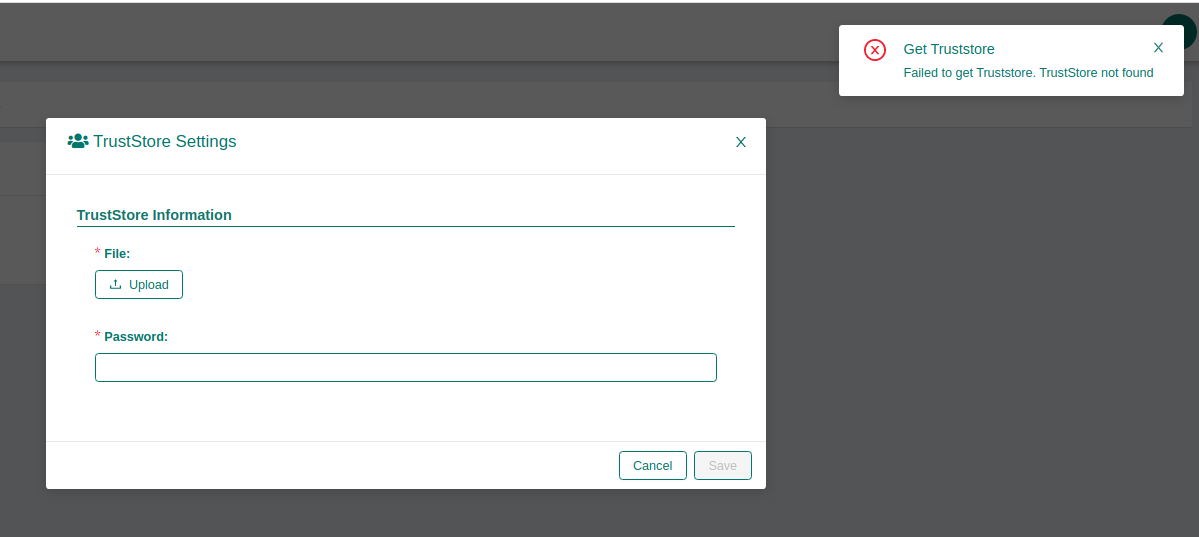
- Verify if the file are uploaded sucessfully:
ls /{FOUNDATION_PATH}/system/default/storage/foundation/default/truststore

or

ls /{FOUNDATION_PATH}/system/default/storage/foundation/default/keystore
- Verify foundation certificates logs and check if the output is like the below.
$ kubectl logs -f service/foundation-certificates

foundation-certificates...| 2020/08/25 15:14:29 --- Listing objects ---
foundation-certificates...| 2020/08/25 15:14:29 Prefix: truststore
foundation-certificates...| 2020/08/25 15:14:29 --- Uploading object ---
foundation-certificates...| 2020/08/25 15:14:29 Bucket name: foundation
foundation-certificates...| 2020/08/25 15:14:29 Object name: default/truststore/file-file-synchro-Br@zil2010#.jks
foundation-certificates...| 2020/08/25 15:14:29 Bucket (foundation) already exists, skipping it.
foundation-certificates...| 2020/08/25 15:14:29 --- Uploading object ---
foundation-certificates...| 2020/08/25 15:14:29 Bucket name: foundation
foundation-certificates...| 2020/08/25 15:14:29 Object name: default/truststore/password
foundation-certificates...| 2020/08/25 15:14:29 Bucket (foundation) already exists, skipping it.
foundation-certificates...| 2020/08/25 15:05:59 --- Listing objects ---
foundation-certificates...| 2020/08/25 15:05:59 Prefix: default/truststore/file-
foundation-certificates...| Error: TrustStore not found
- Check Foundation filesystem type with
df -Tif you are usingxfsusexfs_infoto see if you have dtype enableftype=1. If you are usingext4ensure you have shared flag on/etc/fstab. You can testmount --make-shared /foundationwhere/foundationis the path where your foundation disk are mounted.
High CPU usage by gvfs-udisks2-vo
https://github.com/ubuntu/microk8s/issues/500
TrustStore error when uploading - Unrecoverable private key
You can check de devtools console in the browser, if you see this error:
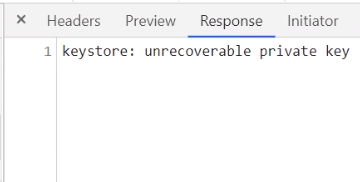
The file is probably in another unsupported format like PKCS12.
The only supported format for keystore is JKS. Sometimes users just rename a PKCS12 keystore to .jksfile and this is not enough for a proper conversion.
To check the current format of the file you can use:
If jks file is different of JSK (PKCS12 is a common error here) we need to convert to the right one, using the command below:
keytool -importkeystore -srckeystore ./current-file.jks -srcstoretype pkcs12 -destkeystore ./new-file.jks -deststoretype jks
failed to upload the application: undefined
When trying to upload any file.module by Web interface and the error message is:
failed to upload the application: undefined
It is necessary to add a new module by command line:
Unexpected kernel message
Message from syslogd@<hostname> at <date time> ...
 kernel:unregister_netdevice: waiting for lo to become free. Usage count = 1
Invalid Signature Issue
When using kubernetes as container orchestrator, if you have multiple terminals accessing your foundation cluster, it's a common issue to have a wrong securityKey on your settings file.
You can see a problem like this when trying to login via foundation command line:
$ foundation login your-environment
INFO[0001] Foundation URL: http://your-environment
QUESTION: Login: user.name
QUESTION: Password:
ERRO[0007] [signature is invalid]
To fix it you can use the command to recover the current valid securityKey:
Then use the recovered key to update your local settings file with:
outputClean foundation deployed history for old apps releases
Attention
The following steps erases the history for all deployed apps. Please backup the following folder before continue: "/{foundation_installation_path}/system/default/foundation/storage/foundation/default/deployments/history"
When using foundation at latests versions maybe you have some troubles with old apps environment variables, to fix this, reproduce the steps below with the problematic application:
Remove and add the same or an newer version for the problematic app:
sudo foundation module stop {appName}-{moduleName}

sudo foundation module rm {appName}-{moduleName}

sudo foundation add --path {absolute path for your .module file}
Perform foundation clean and start the module again:
sudo foundation clean --history --app {appName} --name {moduleName}

sudo foundation module start {appName}-{moduleName}:{moduleVersion}
An error ocurred when trying set state
Sometimes foundation-authlayer maybe start before foundation-postgres, this action cause some issues for executing DB migration scripts.
Check foundation-authlayer logs to see something like that:
[Migrate][ERROR] Could not exec sql migration up: failed to connect to `host=foundation-postgres user=accounts database=accounts`: hostname resolving error (lookup foundation-postgres on 127.0.0.11:53: server misbehaving)
If the log above was presented, and the foundation-postgres service is running execute this command:
502 Bad Gateway at Supervisor status api on k3s
Make sure if you has sudo/root privileges:
Sometimes foundation-proxy fail the request to validate if foudation-supervisor is ready. To check if supervisor/status api healthcheck is the problem reproduce this steps:
If the logs shows 502 Bad Gateway error when making a request to 127.0.0.1/supervisor/status maybe you has a firewall problem, to validate it, please run the command below:
If this command solve the problem you need to disable the firewall permanentily, or create a new rule:
After restart k3s service
Generating TLS Self Signed Certificate and Key
-
Create the certificate and key:
You will be prompted to add identifying information about your website or organization to the certificate. Since a self-signed certificate won’t be used publicly, this information isn’t necessary. If this certificate will be passed on to a certificate authority for signing, the information needs to be as accurate as possible.
The following is a breakdown of the OpenSSL options used in this command. There are many other options available, but these will create a basic certificate which will be good for a year. For more information, see man openssl in your terminal.
- newkey rsa:4096: Create a 4096 bit RSA key for use with the certificate. RSA 2048 is the default on more recent versions of OpenSSL but to be sure of the key size, you should specify it during creation.
- x509: Create a self-signed certificate.
- sha256: Generate the certificate request using 265-bit SHA (Secure Hash Algorithm).
- days: Determines the length of time in days that the certificate is being issued for. For a self-signed certificate, this value can be increased as necessary.
- nodes: Create a certificate that does not require a passphrase. If this option is excluded, you will be required to enter the passphrase in the console each time the application using it is restarted.
-
Restrict the key’s permissions with needes, so that only root can access it:
-
Chipher used for this key is:
Configuring K3S no_proxy to solve pod logs issues.
If you are having errors to get logs from k3s pods, like the error below:
"proxyconnect tcp: proxy error from 127.0.0.1:6443 while dialing example.proxy.com.br:80, code 503: 503 Servide Unavailable"
You need to set it up the k3s no_proxy configuration.
To do that, is necessary to edit the k3s.service.env file, located at /etc/systemd/system/k3s.service.env
Obs: The K3s installation script will automatically take the HTTP_PROXY, HTTPS_PROXY and NO_PROXY variables from the current shell, if they are present, and write them to the environment file (k3s.service.env) of your systemd service.
To fix that issue you need to add or update your NO_PROXY line at k3s.service.env file and your shell variables too if exists, like the example below:
After that update/reload your systemd configuration and restart k3s service:
For more detailed information, please access the k3s official documentation
Keycloak Valid Redirect URIs security configuration
To see detailed information about how to setup Valid Redirect URIs at keycloak for more security when authenticating in your foundation server, go to Keycloak Advanced - Valid Redirect URI section.
Amazon AWS instances disable nm-cloud-setup.service to run k3s.service.
In some cases, AWS Instances/EC2 maybe has nm-cloud-setup.service enabled and running, by default the k3s service only work with nm-cloud-setup.service disabled and stopped.
For this case, we has two options:
- Disable nm-cloud-setup.service and stop then: Refesh systemctl service files: Then, restart k3s service:
-
Another option, is remove the
ExecStartPrecheck from k3s.service file, located at/etc/systemd/system/k3s.service.Attention
Before perform the next steps, make sure with your infrastructure team if exists any network rules maybe blocks k3s.service communication.
Remove or comment that line:
Refesh systemctl service files: Then, restart k3s service:
Convert PFX SSL/TLS Certificate to RSA-PKCS1 and PEM/KEY files
- Export the private key from the pfx file It will prompt you for an Import Password. You should enter in the one password you use to create the PFX file.
- Remove the password and Format the key to RSA It will prompt you for a pem passphrase. This would be the passphrase you used above.
- Export the certificate file from the pfx file It will prompt you for an Import Password. You should enter in the one password you use to create the PFX file.
Keycloak cookie not found (cookieNotFoundMessage)


-
Create a self signed certificate following these steps: Generating TLS Self Signed Certificate and Key
-
Stop foundation running
foundation stopor delete the namespace withkubectl delete namespace <your_namespace_name> -
Run
foundation configand setup HTTPS (TLS/SSL) using the self signed certificate, follow these steps: Foundation HTTPS (SSL/TLS) configuration -
Run
foundation start -
At keycloak admin console go to Realm settings and change Require SSL field to
none, do the same configuration atSynchro Realm:
-
Stop foundation running
foundation stopor delete the namespace withkubectl delete namespace <your_namespace_name> -
Run
foundation configand setup HTTPS (TLS/SSL) using an trusted certificate or disable HTTPS (TLS/SSL) returning to previous configuration. -
Run
foundation start
K3s/Rke2 Custom Coredns configuration
-
To configure custom DNS rules and addresses, create the file below with .yaml extension, at these example the file name is coredns-custom.yaml:
-
In this example file, DNS 169.254.169.254 was added to redirect to domains that contain BR as a suffix, permanently resolving access to the requested sites using the custom rule and DNS address.
-
Edit the file with your rules then apply unsing
kubectl apply -f coredns-custom.yamlcommand.
Extend k3s certificates expiration date (error: You must be logged in to the server (Unauthorized))
To verify all k3s certificates expiration date you can use de commands below:
for i in ls /var/lib/rancher/k3s/server/tls/*.crt; do echo $i; openssl x509 -enddate -noout -in $i; done
for i in ls /var/lib/rancher/k3s/server/tls/etcd/*.crt; do echo $i; openssl x509 -enddate -noout -in $i; done
for i in ls /var/lib/rancher/k3s/server/tls/temporary-certs/*.crt; do echo $i; openssl x509 -enddate -noout -in $i; done
To regenerate the certificate with an extended valid period, run the steps below:
- Stop k3s service:
- Verifiy if /etc/systemd/system/k3s.service file has EnviromentFile entry to k3s.service.env, if not add it:
- Add CATTLE_NEW_SIGNED_CERT_EXPIRATION_DAYS env to k3s service env file:
- Refesh systemctl service files:
- Remove old certificate and key files:
- Start k3s service:
Foundation postgres cluster instance /pg17/data permission denied
When foundation-postgres-instance1-xxxxx logs present the error /pg17/data permission denied maybe the selinux from the server was enabled/Enforcing.
- Check selinux status
bash getenforce - If status is Enforcing, disable selinux:
-
Persist selinux configuration editing /etc/selinux/config. Change the SELINUX value to
SELINUX=permissive. This edit ensure the configuration perssitance after server reboot. -
Restart rke2-server service:
Foundation keycloak 25.09.26 liquibase validation failed error
When updating foundation from version 23.XX.XX to an newest version superior than 23.09.XX. Some steps should be done to keycloak run properly.
- Change keycloak deploy image to 24.09.24 version
- Check if the new keycloak pod are running
1/1 Runningusingkubectl get podscommand, if yes go toStep 3. If not and the status isImagePullBackOff, possibly your server does not has access to dowload and import the keycloak 24.09.24 image automatically from synchro registryfoundationregistry.synchro.com.br, you need to import the image manually. Execute the following steps:- Download the keycloak 24.09.24 module file from this link to the server.
- Go to the directory where the file was saved at the server, and import the image using the command below:
- After the image import, check again the pod status using
kubectl get pods, now it shuld be1/1 Running.
- Change keycloak image back to the current installed version:
Too many open files error
If a foundation environment becomes unavailable, one of the possible causes can be the Kubernetes cluster reaching the maximum limit of open files. The following steps are needed to solve this problem:
- Check the current value
- In the file /etc/sysctl.conf add or edit the following line
- Apply the changes restarting the server or executing the subsequent command as root
- In /etc/systemd/system/k3s.service edit the LimitNOFILE parameter or add it if necessary after the [Service] line, which default value is 1048576
- After saving, execute
Keycloak Error - org.hibernate.LazyInitializationException: Cannot lazily initialize collection of role (version 26.09.15)
The error happens after upgrading Keycloak to version 26.7.2. It tries to run a migration from the update of the version and it fails due to a non-deterministic scenario: On the database, when the realms are loaded, the others realms are loaded before the realm master, causing a problem during the initialization of the master realm JPA entity. The workaround is to ensure the master realm is processed first.
2026-09-17 14:23:10,433 ERROR [org.keycloak.quarkus.runtime.cli.ExecutionExceptionHandler] (executor-thread-1) Error details:: org.hibernate.LazyInitializationException: Cannot lazily initialize collection of role 'org.keycloak.models.jpa.entities.RealmEntity.components' with key 'e481c470-014a-4a8c-b9d4-87b70382e0f4' (no session)
Check whether the instance is affected
To detect if this scenario is happening, run the following command on the machine running Foundation application (sudo user):
sudo kubectl exec -it $(kubectl get pods -A | awk '$2 ~ /foundation-postgres/ {print $2}') \
    -n <namespace> \
    -- psql keycloak accounts -c "select ctid, id, name from realm;"
The output should look similar to the following, where the realm master is not listed first:
ctid  |                  id                  |  name
-------+--------------------------------------+---------
(0,1) | e481c470-014a-4a8c-b9d4-87b70382e0f4 | synchro
(0,2) | dfee691c-ddaf-48fb-83c0-02fc49744d19 | master
(2 rows)
Apply the workaround
The workaround for this scenario is to change this order. For this, you should run the following command:
sudo kubectl exec -it $(kubectl get pods -A | awk '$2 ~ /foundation-postgres/ {print $2}') \
    -n <namespace> \
    -- psql keycloak accounts -c "
    CREATE INDEX realm_master_first_tmp_idx
    ON realm (
        (CASE WHEN name = 'master' THEN 0 ELSE 1 END),
        name
    );

    CLUSTER realm USING realm_master_first_tmp_idx;

    DROP INDEX realm_master_first_tmp_idx;
    "
After running the previous SELECT statement again, the realm master should now be listed first:
ctid  |                  id                  |  name
-------+--------------------------------------+---------
(0,1) | dfee691c-ddaf-48fb-83c0-02fc49744d19 | master
(0,2) | e481c470-014a-4a8c-b9d4-87b70382e0f4 | synchro

(2 rows)
The Keycloak instance should no longer produce this error. To restart Keycloak, run this command:
OBS: Replace