Foundation Keycloak user
Creating users
From the Admin Console, you have a wide range of actions you can perform to manage users.
Procedure
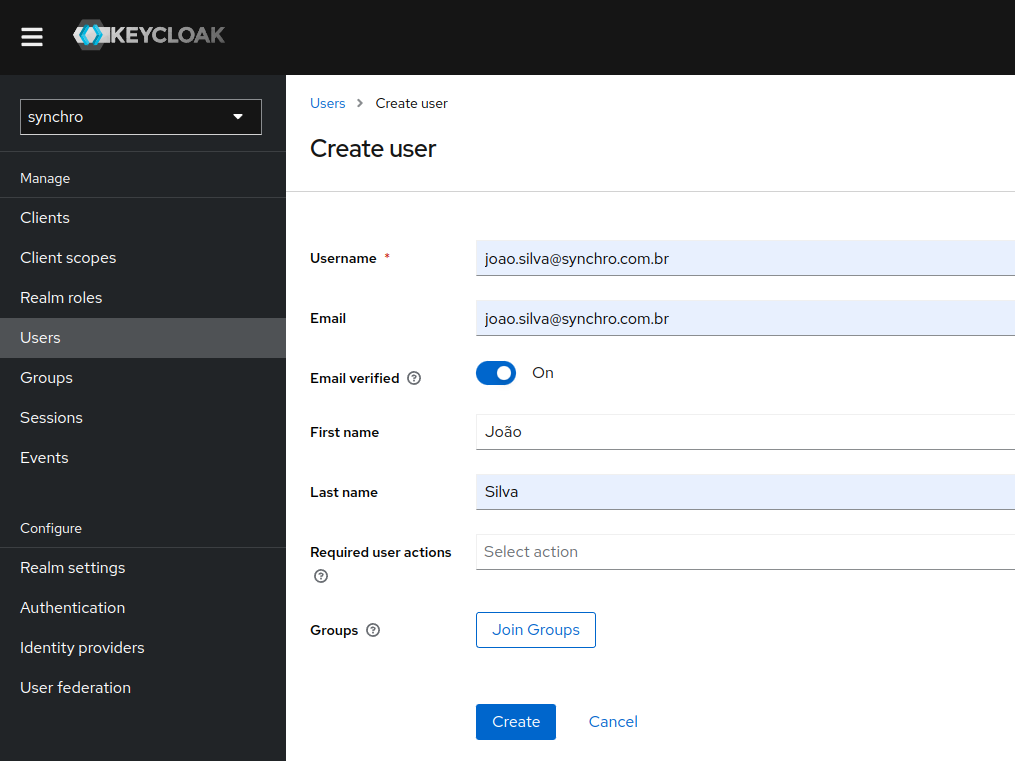
If you don't have an keycloak user account in Realm configured, you can create one now by follow steps:
User feature details
If you need "User feature details", see keycloak user.
Username
Need Username equal email address
-
Create a keycloak user.
-
Click the "Credentials tab" and "Set Password".
-
Roles feature, check Adding roles to the user role mapping.
Change user password
Procedure
-
Select the realm.
Important
AdminKeycloak User?
Select "Master" Realm
Please insert a valid Email address in step 3.
-
Click "Users" in the menu. The Users page is displayed.
-
Select a user.
-
Click the "Credentials" tab.
-
Click the "Reset password" button.
-
Type a new password in the Reset Password section.
Temporary button
If Temporary is ON, the user must change the password at the first login. To allow users to keep the password supplied, set Temporary to OFF. The user must click Set Password to change the password.

Recover password
If it's not working
Procedure
-
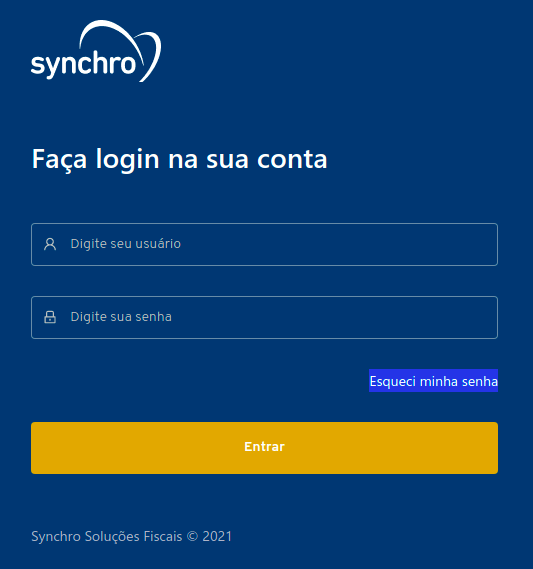
Click Forgot password.
-
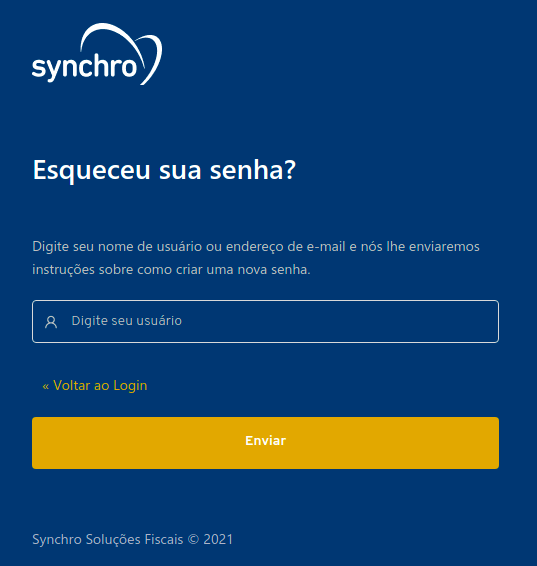
Please enter your username or your email in order to recover your password.
-
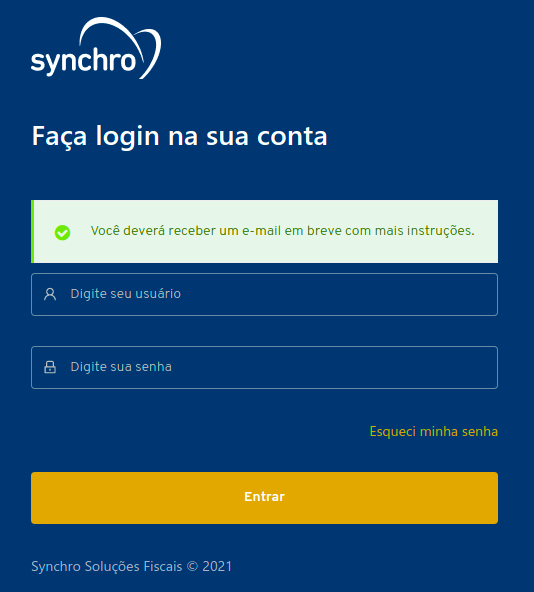
You will receive an email with detailed instructions.